Home / Software / Trading software / Software applications / Clover mobile features and reports

Clover mobile features and reports

Detelina mobile functions and reports is a module to the commercial software “Detelina”, which provides full control over sales, turnover and stock in real time directly from a mobile phone or tablet.

The app is available for Android and iOS and allows you to manage one or multiple outlets from anywhere with internet access.

  • Subscription model
  • 3 months of free test access and 5 El-Tokens for AI processing of 5 invoice photos

0,00 € Цените са с ДДС.

Out of stock

Product Inquiry:

Mobile access to sales and reports

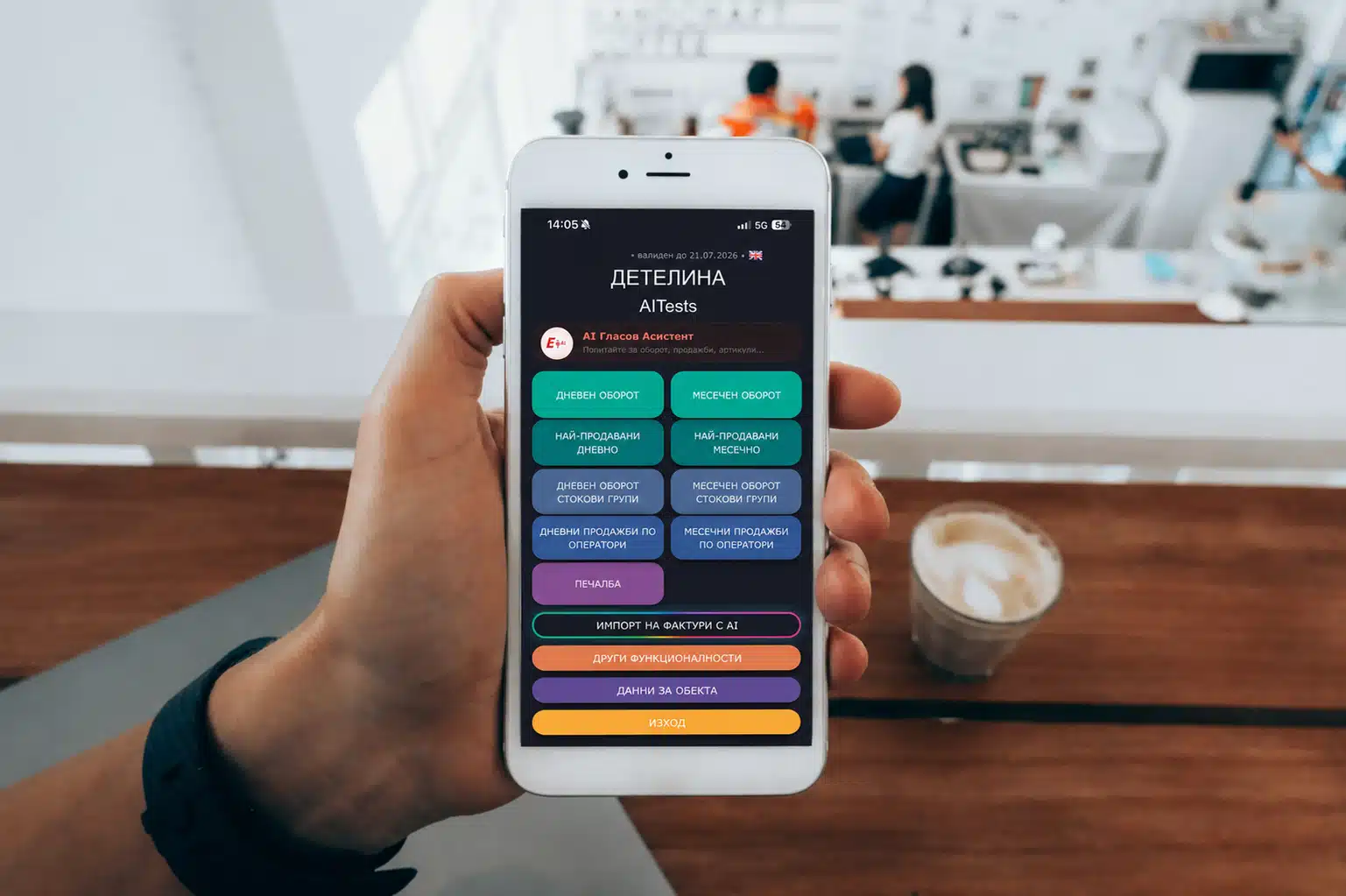
The module for mobile functions and reports to “Clover” allows you to access information about sales, turnover, stock and other reports in real time through a phone or tablet. The app allows you to manage one or more sites from any location with internet access.
mobilni spravki eltrade jena raboti v sladkarnica

Mobile access to sales and reports

The module for mobile functions and reports to “Clover” allows you to access information about sales, turnover, stock and other reports in real time through a phone or tablet. The app allows you to manage one or more sites from any location with internet access.
mobilni spravki eltrade jena raboti v sladkarnica 4 3
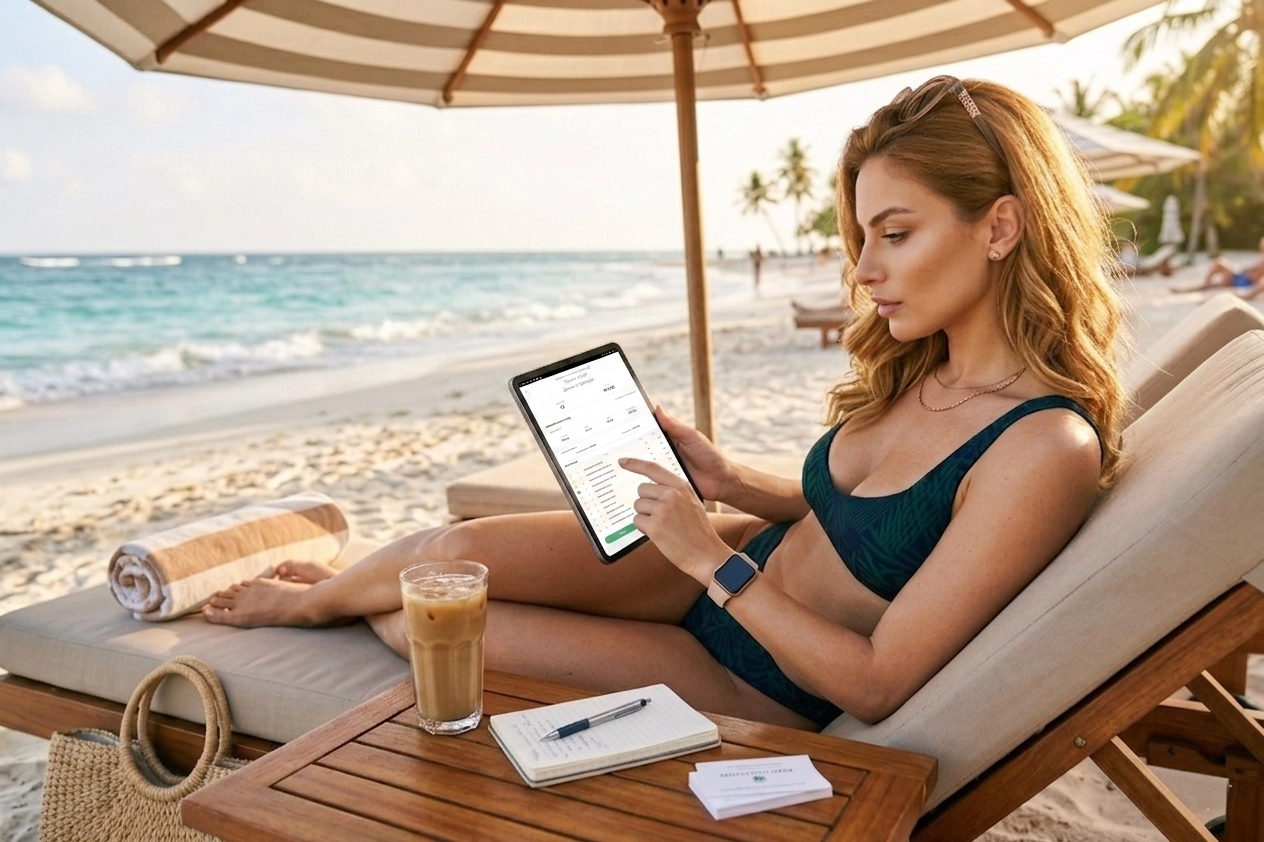
mobilni spravki eltrade jena raboti ot plaja na tablet

Main functionalities

  • Overview of daily and monthly turnover
  • Analysis of sales by groups, operators and items
  • Checking inventory
  • Search and edit items
  • Creating and managing promotions

The system also includes advanced reports for analysis and planning.

Main functionalities

  • Overview of daily and monthly turnover
  • Analysis of sales by groups, operators and items
  • Checking inventory
  • Search and edit items
  • Creating and managing promotions

The system also includes advanced reports for analysis and planning.

mobilni spravki eltrade jena raboti ot plaja na tablet 4 3

Invoice processing

Invoices can be entered directly through the mobile app, taking pictures with the phone’s camera or attached from the gallery. After sending, the data enters the back office environment of Detelina, where the document is viewed by an operator and, if necessary, edited.

After confirmation, the information is recorded in the system as a delivery request.

mobilni spravki telefon kamera snima fakturi scaled

Invoice processing

Invoices can be entered directly through the mobile app, taking pictures with the phone’s camera or attached from the gallery. After sending, the data enters the back office environment of Detelina, where the document is viewed by an operator and, if necessary, edited.

After confirmation, the information is recorded in the system as a delivery request.

Attach invoices via AI with phone camera capture

Invoice processing with AI

Take an invoice with your phone, and “Clover – Mobile Reports” automatically reads the content and prepares the delivery for arrival, without manual entry.

The system recognizes:

  • Supplier
  • Items, quantities and units of measurement
  • Unit prices and values
  • Date and document number
  • Batches

Supported documents:

  • Invoices
  • Invoices issued by a fiscal printer or cash register
Mobile reports and features with invoice processing using artificial intelligence
Scheme of functioning of invoice processing with artificial intelligence - Eltrade - commercial software

Fast process from shooting to arrival

  • After shooting, the document is processed automatically. In the back office, you associate the items from the invoice with your nomenclature and confirm the document. After that, the delivery is returned to Detelina.

    The linking of items is done once for each supplier. On subsequent invoices, the system automatically recognizes the already linked items and speeds up processing.

Custom Vendor Templates

For frequently used providers, personal templates can be created that provide fast and reliable recognition of documents, regardless of their format.

Creating Custom Invoice Processing Supplier Templates - Mobile Reports  Features - Eltrade
The main advantages of the mobile application reports and functions from Eltrade - invoice processing function

Key Benefits

  • Saves time when processing deliveries
  • Reduces manual typing errors
  • Speeds up onset
  • Easy and intuitive interface on the phone and in the back-office system
  • Self-learning system for faster work with each subsequent invoice

Main functionalities

Светла тема
Месечни продажби по оператори в мобилното приложение Детелина
Тъмна тема
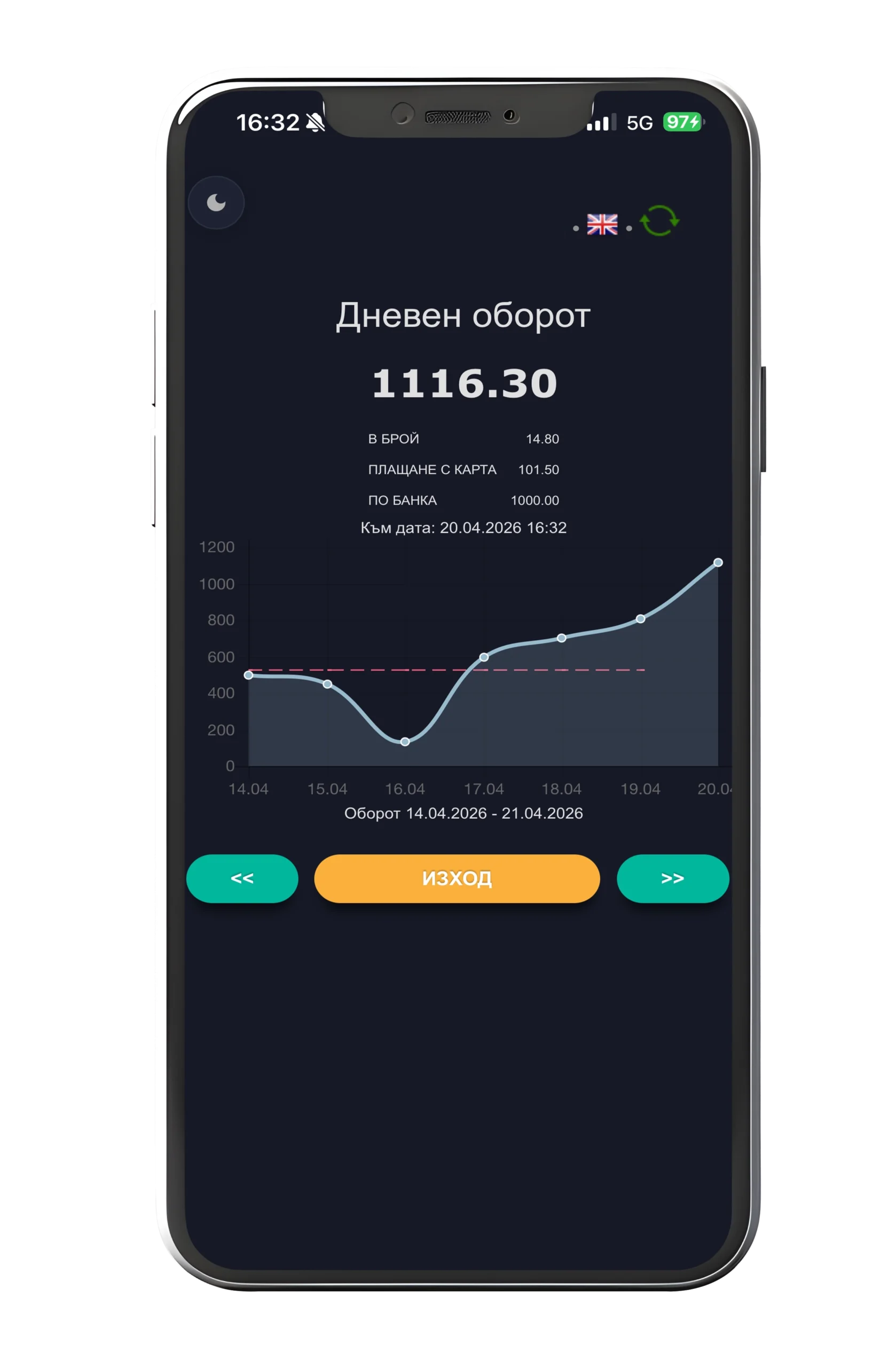
Дневен оборот в мобилното приложение Детелина

Reports and analyses

  • Daily and monthly turnover
  • Sales by Commodity Groups and Items
  • best-selling items
  • Sales by Operators
  • References for past periods
  • Sales graphs by period
Светла тема
Снимане на фактура през мобилното приложение Детелина
Тъмна тема
AI обработка на фактури в мобилното приложение Детелина

Invoice Processing (AI)

  • Invoices are entered by photo or attachment through the mobile application. The data is automatically recognized and sent to Detelina for review and, if necessary, for editing. After confirmation, they are recorded as a delivery request.

    El-Tokens: tokens are used to process documents according to volume.

Светла тема
AI гласов асистент в мобилното приложение Детелина
Тъмна тема
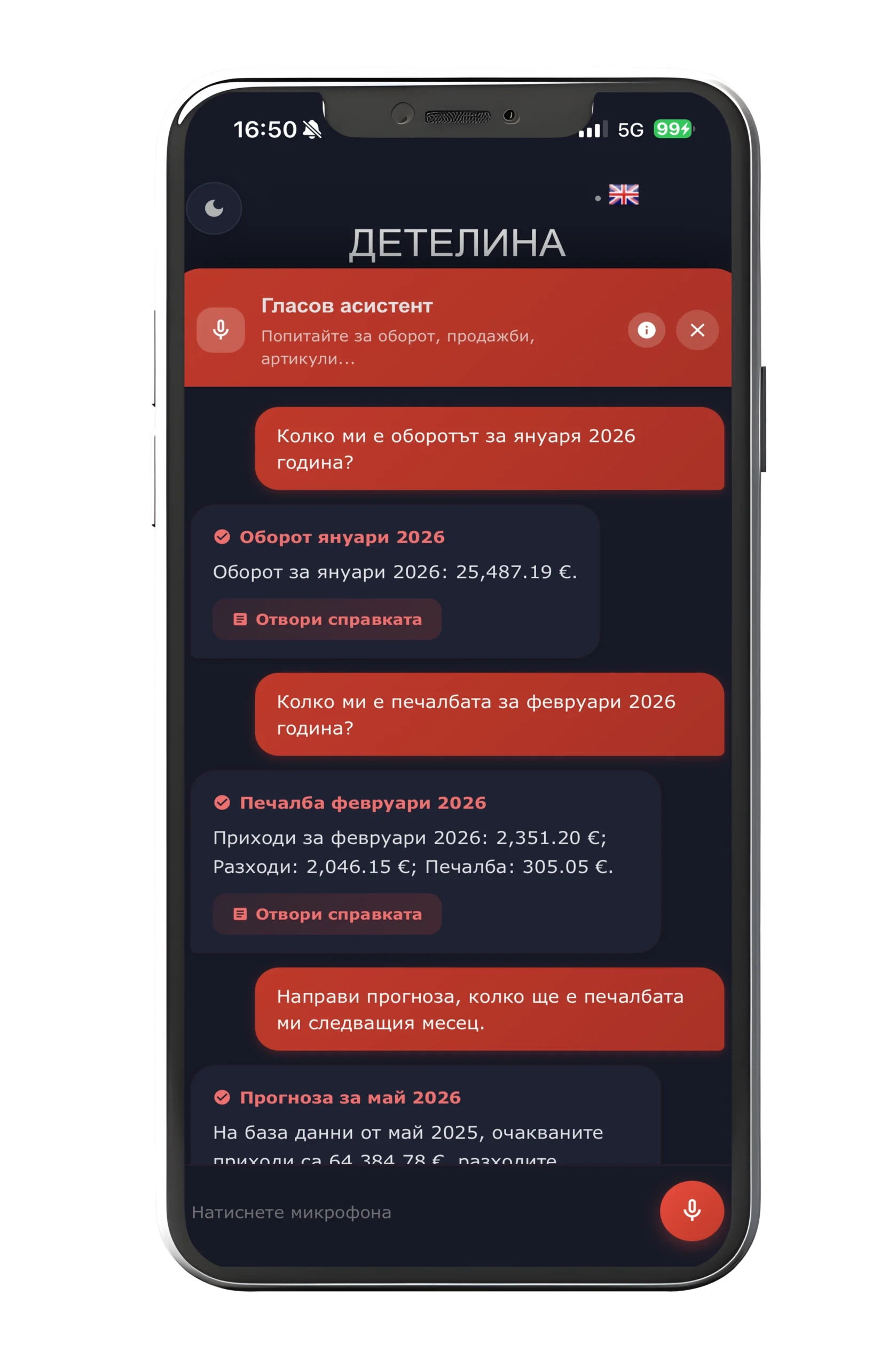
Гласови справки през мобилното приложение Детелина

AI functionalities

Voice Assistant (AI)

  • Search for reports by voice
  • Questions about turnover, sales and availability

Predictions and Analytics (AI)

  • Turnover forecast for the next month
  • Item Sales Forecast
  • supports supply planning
Светла тема
Отворени сметки в мобилното приложение Детелина
Тъмна тема
Управление на обекти през мобилното приложение Детелина

Sites and current sales

  • Work with one or more sites
  • Tracking open accounts
  • View items in current sales
  • Work on a working day basis
Светла тема
Детайли за артикул в мобилното приложение Детелина
Тъмна тема
Продажби и наличности на артикул в мобилното приложение Детелина

Items Stocks

  • Search and edit items
  • Changing prices and parameters
  • Checking inventory
  • restricting the sale of items
Светла тема
Детайли за промоция в мобилното приложение Детелина
Тъмна тема
Активни промоции в мобилното приложение Детелина

Promotions

  • Creating promotions (price or discount)
  • Setting a period and priority
  • View active promotions

Installing a mobile device

Step 1

mobilni spravki eltrade interface na telefon playstore bql fon
  • Download the “Eltrade Clover Reports” application from the App Store or Google Play Store.

Step 2

mobilni spravki eltrade interface na telefon detelina obekti scaled
  • Once you have installed and opened the app, a screen will appear to add an object. Enter the required details and confirm.

Step 3

mobilni spravki eltrade interface na telefon dobavqne na obekti tst bql fon
  • If you manage more than one entity, you can add additional entities in the same way. They will be saved to your profile and you will be able to easily switch between them.

Step 4

mobilni spravki eltrade interface na telefon osnovno menu bql fon
  • Select the entity you want to manage through the mobile app.

Module installation instructions,
connecting the database to the cloud:

  • All the steps in this instruction apply to the computer on which the database is uploaded.

Step 1: Download the installer

  • Before starting the installation, it is necessary to download an installation file: MobileReportSetup.

Download

Installation file: MobileReportSetup

Clover Reference Wizard icon

Step 2: Start the installation

  • Run the downloaded file MobileReportSetup.exe .

Step 3: Select a directory

  • The installer automatically tries to find out where “Clover” is installed on your computer.
  • If the system is not automatically detected or you want to specify a different location, follow these steps in the “Path to Detelina Trading Software” window. In the field, specify where it is located and manually enter the correct path or
    use the “Browse…” button to select it (for example: D:
    \EltradeBackOffice\DetelinaBOS).
  • After making sure that the path is correct, press the “Next >” button.
Configuring the installation directory of TIS Detelina - Step 2
Confirmation window for starting the installation of Mobile Reports

Step 4: Ready to Install

  • In the Ready to Install window, the installer summarizes the selected settings before
    The actual process:
  • Check the specified Destination.
  • Check the folder name in the “Start” menu (default: ELTRADE TIS CLOVER ).
  • Press the “Install” button to start saving the files. If you wish
    Change the parameters, press “< Back“.

Step 5: Finalize the installer

  • After successfully copying all components, the screen “Wizard for
    installation of ‘Reports to Clover via Mobile Phone’ is complete“.
  • You can launch the application through the already created icons on your computer.
  • Press the “Finish” button to close the installation window.
Finalization screen and successfully completed installation
Setting up Database ID and Password DB in EBO Cloud Report Monitor
View active connection status and system information in EBO Cloud

Step 6: Configuring Remote Reports in Back Office

  • Once the installation is complete, you need to generate access data from the admin panel:
  • Start and log in to ELTRADE back office – admin.
    From the top main menu, select: Settings → System → Server Settings .
    In the “System Settings” window that opens, go to the “Remote Reports” tab.
  • Here you will find the following key parameters required for the mobile application:
    Database ID: (for example: 50df3208 )
    Password to access the database: (for example: 0519 )
  • Make sure the service is active (you can see the time of Last Cloud Service Start).
  • Press the “Confirm” button to save the settings.

This completes the installation of the Mobile Reports and Functions module on your computer.

More